
FishCaster Help Files
1. Quick start guide


FishCaster compares weather forecast and solunar (sun and moon) data to a set of preferred criteria and provides scores for the next 7 days based on how well they match. The higher the score, the better the match (and the better the fishing).
-
Location selection: This is the location of the weather data currently used in the app and scored below. Tap this button to select a different location. Select a town or city closest to the body of water you are interested in.
-
Criteria selection: This is the "preferred" weather and solunar criteria currently being compared to the location's predicted weather and solunar conditions to calculate scores. Tap this button to open a list of available criteria for selection. The app includes two built-in criteria: Best Fishing and Comfort and Safety. The Best Fishing criteria intends to maximize fishing success based on over 15 weather and solunar variables, while the Comfort and Safety criteria intends to balance comfort and safety with fishing success (family-friendly). Additional criteria will be available to select as the user saves custom criteria or hot fishing criteria.
-
Hot fishing: If you're experiencing very good fishing, tap this button to capture the current weather and solunar conditions. These conditions will be saved as a new criteria that can be selected within the criteria selection list and used for future scoring. Be sure that the app's Selected Location is your current location before pushing the Hot Fishing button.
-
Create custom criteria: Tap this button to create your own preferred fishing criteria. After creating and saving your custom criteria, it will be available for selection within the criteria selection list.
-
Scores: These scores (0-100) represent how well the selected location's predicted weather and solunar conditions compare to the selected criteria. Scores are provided for the current period and for the next 7 days. The higher the score the better the match and the better fishing. Periods with scores >60 are green, periods with scores 30-59 are yellow, and periods with scores <30 are red. The exception to this are periods in which there are predicted safety concerns such as thunderstorms, high winds, or heavy rains. In these cases, the periods will be red, regardless of the score. To learn about the weather/solunar conditions for that period and the scoring, simply tap on the time period and a table showing the preferred and predicted conditions, along with the scores, will be displayed (see second screenshot).
2. Location selection

-
FishCaster uses weather and solunar data for the location listed as the "Selected Location" on the home screen. To change or add a new location, tap the location on the home screen. This will open up the Select Location screen (image to left).
-
To change the selected location, tap on any of the locations currently listed.
-
If your desired location isn't listed, click on one of the two icons in the top right of the screen. Icon #1 opens up a Google maps screen where you can enter your location. You should enter a city/town nearest the body of water of interest. Icon #2 selects your current location based on your phone's GPS. Once you have selected a location, it will now be included in the list of locations for future selection.
-
Important note: Before selecting "Hot Fishing" (described below), make sure the Selected Location in the app is your current location. Otherwise, it will take a snap shot of the current weather for a different location. You want to weather data snapshot to represent your current location.
-
To delete a location from the list, swipe to the left. After you swipe to the left, the app will update the list and confirm that it was deleted. Do not delete another location until you're given confirmation that the previous location was deleted. This can take a few seconds. You can't delete a location that is currently listed as the Selected Location on the home screen.
3. Criteria selection

-
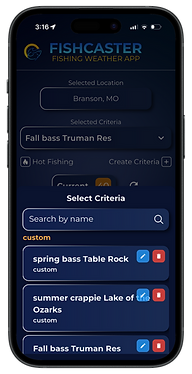
The Selected Criteria is the preferred weather and solunar conditions that are being compared to the Selected Location's forecasted conditions. To change the Selected Criteria, click on the currently selected criteria on the home screen. This will open the Select Criteria screen.
-
To change the Selected Criteria, tap on any of the current criteria sets listed. There are two pre-defined criteria (Best Fishing and Comfort and Safety) already included with the app. The Best Fishing criteria intends to maximize fishing success based on over 15 weather and solunar variables, while the Comfort and Safety criteria intends to balance comfort and safety with fishing success (family-friendly).
-
To create your criteria with your own preferred weather or solunar conditions, tap the "Create Criteria" button. (See custom criteria creation below). Once a new custom criteria is created, it will be listed in the "Custom" section of the criteria list.
-
To delete or edit a custom criteria, swipe to the left and select the edit or delete icon. Note that you can't edit or delete a criteria that is currently listed as the "Selected Criteria" on the home screen and being used by the app.
4. Hot Fishing
When the fishing is really good, push the "Hot fishing" button. This will capture the current weather and solunar conditions as a new set of criteria that can be used in the future. After pushing the "Hot fishing" button, you will be asked to save other information about the fishing trip, including the date/time, location, species of fish, lures/bait/presentation, and water temperature. This information can be used in the future to help you select the most appropriate Hot fishing criteria. For example, if you are going to be fishing for bass on Lake St. Clair in the spring, select a Hot fishing criteria that matches these conditions.
Important: Before pushing the "Hot Fishing" button, make sure the Selected Location on the home screen is the location that you're currently fishing. The weather/solunar conditions that the app uses to create the new criteria set will be from that location.
5. Custom criteria creation

If you know what your preferred weather/solunar conditions are, you can create your own custom criteria. For example, if you know that fishing on a particular lake is best when the wind is out of the west between 5-10 mph, with mostly cloudy skies, and a falling barometric pressure, you can create a custom criteria set with these conditions.
-
To create a custom criteria, simply tap on the "Create Criteria" button on the home screen. This will open up the Create Criteria screen where you make selections from numerous weather variables, including temperature, barometric pressure, cloud cover, and wind. In addition, you can select lunar conditions, including moon related feeding period and phases.
-
When you select a variable, you can also assign how many points should be allocated to that variable. This allows you to make certain variables more or less important in the scoring. For example, if you think that barometric pressure is more important than cloud cover, you might assign 2 points to barometric pressure but only 1 point for cloud cover. If there are certain conditions in which you don't want to fish because of safety concerns, you can select "automatic red period" and the day/time periods on the home screen meeting that condition will be red, indicating fishing might not be safe. For example, if you don't want to fish when the wind is above 15mph, you can select "automatic red period" for speeds greater than 15mph and any period with wind speeds above 15mph will be red, regardless of the score.
-
To delete or edit a custom criteria, swipe to the left and select the edit or delete icon. Note that you can't edit or delete a criteria that is currently listed as the "Selected Criteria" on the home screen and being used by the app.